Joplin
Notes and to-do lists that sync across your devices
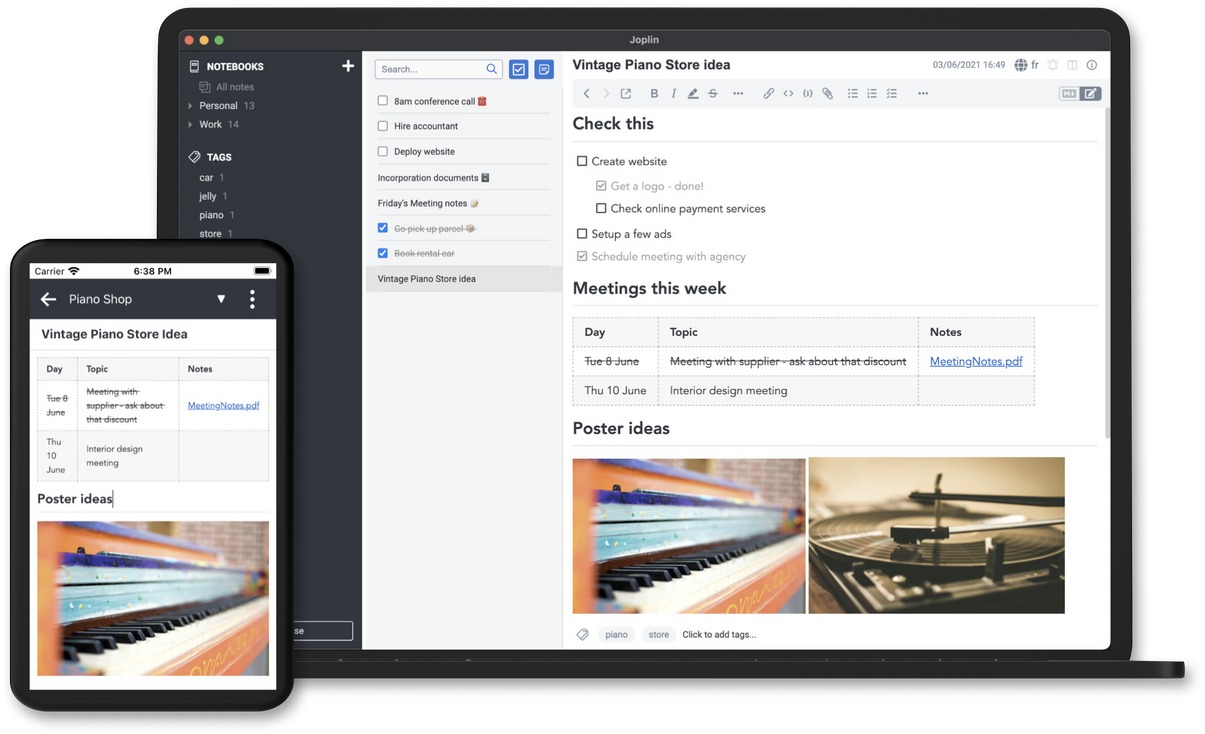
Images from the project's own README.
What it does
Joplin is a note-taking and to-do app for computers and phones. You can organize notes into notebooks, clip web pages, and sync everything with end-to-end encryption.
Who it's for
People leaving Evernote or OneNote who want privacy and control of their notes.
Key features
- Notebooks, tags and search
- End-to-end encrypted sync
- Web clipper for saving pages
Often used instead of: Evernote, OneNote, Notion
Compatibility
NOVI never presents a guess as verified.- WindowsEvidence-supported
Available as an official WinGet package (“Joplin.Joplin”).
- macOS (Apple Silicon)Evidence-supported
Available as an official Homebrew Cask package (“joplin”).
- macOS (Intel)Evidence-supported
Available as an official Homebrew Cask package (“joplin”).
- LinuxEvidence-supported
Available as an official Flatpak (Flathub) package (“net.cozic.joplin_desktop”).
What do these labels mean?
- Confirmed
- NOVI users have completed verified installations on this system.
- Evidence-supported
- The project publishes an official build or package for this system.
- Inferred
- Likely to work based on how the project is built, but not confirmed.
- Unknown
- We have not found enough evidence either way.
- Unsupported
- The project does not support this system.
How to get it
Direct downloadDownload the official installer from the project or its publisher, then open it. Difficulty: Easy.
WindowsDirect downloadGuided
Download from the official release
File attached to the project's official GitHub release. NOVI links to it; the file comes straight from github.com, not from NOVI. Where this link comes from
- 1
After it downloads. Open the downloaded file (usually in your Downloads folder) and follow the installer. If Windows SmartScreen warns you, check that the file came from the address shown above before choosing to run it.
Install with WinGet
Installs Windows applications using WinGet, Microsoft's package manager included with Windows 10 and 11. You run these steps yourself; NOVI does not install anything from this website.
- 1
Open Windows Terminal or PowerShell. Right-click the Start button and choose Terminal. WinGet is included with Windows 10 (recent updates) and Windows 11; type “winget --version” to check.
- 2
Copy this command and press Enter. It installs the package from Microsoft's official WinGet catalogue. Windows may ask for administrator approval for some installers; only approve it if you trust this software.
winget install --id Joplin.Joplin --exact --source winget --accept-package-agreements --accept-source-agreements - 3
Check it worked. The app appears in your Start menu. This command lists it as installed:
winget list --id Joplin.Joplin --exact --source winget - 4
See the official package listing. Shows the publisher's installer that WinGet downloads. Open
macOS (Apple Silicon)Direct downloadGuided
Download from the official release
File attached to the project's official GitHub release. NOVI links to it; the file comes straight from github.com, not from NOVI. Where this link comes from
- 1
After it downloads. Open the downloaded file from your Downloads folder. For a .dmg, drag the app into Applications; for a .zip, double-click to unpack it, then move the app into Applications. The first time you open it, macOS may ask you to confirm.
Install with Homebrew Cask
Installs macOS applications using Homebrew, a widely used package manager for macOS. You run these steps yourself; NOVI does not install anything from this website.
- 1
Make sure Homebrew is installed. Homebrew is a free, widely used tool for installing software on a Mac. Open the Terminal app and type “brew --version”. If you see a version number you already have it; otherwise follow the one-line instructions on brew.sh. Open
- 2
Copy this command into Terminal and press Return. It installs the package from Homebrew's official catalogue only. Homebrew checks the download against a known checksum.
brew install --cask homebrew/cask/joplin - 3
Check it worked. The app appears in your Applications folder. You can also run this command to see the installed version:
brew list --cask --versions joplin - 4
See the official package listing. Shows exactly what Homebrew installs and where it comes from. Open
macOS (Intel)Direct downloadGuided
Download from the official release
File attached to the project's official GitHub release. NOVI links to it; the file comes straight from github.com, not from NOVI. Where this link comes from
- 1
After it downloads. Open the downloaded file from your Downloads folder. For a .dmg, drag the app into Applications; for a .zip, double-click to unpack it, then move the app into Applications. The first time you open it, macOS may ask you to confirm.
Install with Homebrew Cask
Installs macOS applications using Homebrew, a widely used package manager for macOS. You run these steps yourself; NOVI does not install anything from this website.
- 1
Make sure Homebrew is installed. Homebrew is a free, widely used tool for installing software on a Mac. Open the Terminal app and type “brew --version”. If you see a version number you already have it; otherwise follow the one-line instructions on brew.sh. Open
- 2
Copy this command into Terminal and press Return. It installs the package from Homebrew's official catalogue only. Homebrew checks the download against a known checksum.
brew install --cask homebrew/cask/joplin - 3
Check it worked. The app appears in your Applications folder. You can also run this command to see the installed version:
brew list --cask --versions joplin - 4
See the official package listing. Shows exactly what Homebrew installs and where it comes from. Open
LinuxDirect downloadGuided
Download from the official release
File attached to the project's official GitHub release. NOVI links to it; the file comes straight from github.com, not from NOVI. Where this link comes from
- 1
After it downloads. Open the downloaded file with your software centre, or follow the project's instructions for this file type (AppImage files need to be marked as executable first).
Install with Flatpak (Flathub)
Installs sandboxed Linux applications from Flathub for your user account only. You run these steps yourself; NOVI does not install anything from this website.
- 1
Make sure Flatpak and Flathub are set up. Many Linux systems include Flatpak. Flathub's setup page has short instructions for every major distribution. Open
- 2
Copy this command into a terminal and press Enter. It installs the app from Flathub for your user account only — no administrator password needed — and runs it in Flatpak's sandbox.
flatpak install --user flathub net.cozic.joplin_desktop - 3
Check it worked. The app appears in your applications menu. This command shows its details:
flatpak info --user net.cozic.joplin_desktop - 4
See the official Flathub page. Shows the app's permissions and who publishes it. Open
NOVI never installs software from your browser. Downloads come directly from the project or its publisher. Only install software you trust.
Get it working
A free, personal setup plan for your computer: the official download, exact steps, and a checklist. Saved in your dashboard, with help if you get stuck. NOVI never installs or runs anything on your computer.
Requirements
- macOS 12 or later — Minimum macOS version declared by the Homebrew package.
- Homebrew Cask for automatic install — Installs macOS applications using Homebrew, a widely used package manager for macOS. The NOVI companion checks whether it is present.
- WinGet for automatic install — Installs Windows applications using WinGet, Microsoft's package manager included with Windows 10 and 11. The NOVI companion checks whether it is present.
- Flatpak (Flathub) for automatic install — Installs sandboxed Linux applications from Flathub for your user account only. The NOVI companion checks whether it is present.
Cost: The app is free. An optional paid sync service (Joplin Cloud) is offered by the developers.
Trust and security
- license
No verified open-source licence.
GitHub could not match this repository to a recognised open-source licence. The code is public, but you should not assume you may modify or redistribute it. Check the repository's licence terms.
Source - distribution
Distributed through Homebrew Cask, an established package source.
The package manager checks downloads against a published checksum before installing.
Source - distribution
Distributed through WinGet, an established package source.
The package manager checks downloads against a published checksum before installing.
Source - distribution
Distributed through Flatpak (Flathub), an established package source.
The package manager checks downloads against a published checksum before installing.
Source
NOVI checks licences, maintenance activity and distribution sources. NOVI has not audited this project's code and does not certify it as secure. Only install software you trust.
Reviews
No reviews yet
Be the first to share your experience with Joplin. NOVI never shows invented reviews.
Sign in to write a review.
Recent releases
From GitHubv3.7.22Oct 28, 2026
- Improved: Add read_notes MCP tool (#16845) (#16782) - Improved: Reduce read_note token consumption with outline and section navigation (#16838) (#16777) - Improved: Return the enclosing section with each search_notes result (#16842) (#16778) - Improved: Treat private network AI providers as local (#16837) - Improved: Upgrade app banner shows the wrong minimum app version (#16819) (#16721 by [@Rygaa](https://github.com/Rygaa)) - Fixed: Security: Upgrade to Electron 42.11.18 (#16964) (#16939 by [@personalizedrefrigerator](https://github.com/personalizedrefrigerator))
Full release notesv3.7.21Sep 25, 2026
- New: Add setting to hide the AI Chat toolbar button (#16607) - Improved: AI Chat: Persist conversation history and add a chat switcher (#16583) (#16498 by [@Rygaa](https://github.com/Rygaa)) - Improved: Improve how semantic search interacts with item IDs (#16652) (#16644 by [@personalizedrefrigerator](https://github.com/personalizedrefrigerator)) - Fixed: Fix AI configuration test failing on reasoning models (#16594) - Fixed: Fix AppImage StartupWMClass (#16547) (#16434 by [@MiQ71](https://github.com/MiQ71)) - Fixed: Fix ENEX import failing on Evernote's unescaped ampersands (#16580) - Fixed: Fix LMStudio compatibility (#16552) (#16539 by [@personalizedrefrigerator](https://github.com/personalizedrefrigerator)) - Fixed: Fix dropping notes into the whiteboard editor (#16565) (#16457 by [@personalizedrefrigerator](https://github.com/personalizedrefrigerator)) - Fixed: Fix notes and sub-folders are still marked as published after being moved out of a published folder (#16648) (#16647 by [@personalizedrefrigerator](https://github.com/personalizedrefrigerator)) - Fixed: Fix reasoning blocks leaking into AI chat replies (#16595) - Fixed: Fix sync deadlock when Joplin Server rejects an
Full release notesv3.7.18Sep 11, 2026
- Improved: Fix notes imported from OneNote are displayed with a very small font size (#16440) (#16424 by [@Rygaa](https://github.com/Rygaa)) - Improved: Tag area broken with Japanese language (#16483) (#16427 by [@Rygaa](https://github.com/Rygaa)) - Improved: Whiteboard: Double-click empty canvas to add a note (#16470) - Fixed: Allow OpenAI reasoning models to be used with tools (#16451) (#16444) - Fixed: Fix WebDAV sync failing with 409 errors after 3.7 upgrade (#16471) (#16422) - Fixed: Fix keyboard navigation issues related to level-1 headings (#16409) (#16407 by [@personalizedrefrigerator](https://github.com/personalizedrefrigerator)) - Fixed: In-editor Markdown rendering: Fix markup syntax is visible while clicking and dragging the scrollbar (#16461) (#16454 by [@personalizedrefrigerator](https://github.com/personalizedrefrigerator)) - Fixed: Return 202 for MCP notification requests (#16473) (#16414) - Fixed: Toggle AI Chat keystroke shortcut does nothing (#16433) - Fixed: Treat private network AI providers as local and make their API key optional (#16472) (#16431) - Fixed: Whiteboard: Add missing "Add note to whiteboard" menu item (#16468) (#16457) - Fixed: Fix WebDAV sync e
Full release notesv3.7.16Sep 6, 2026
- Improved: External editor: Add additional logic to avoid overwriting a note with older content (#16352) (#16350 by [@personalizedrefrigerator](https://github.com/personalizedrefrigerator))
Full release notesv3.7.14Pre-releaseAug 30, 2026
- Improved: External editor: Add additional logic to avoid overwriting a note with older content (#16352) (#16350 by [@personalizedrefrigerator](https://github.com/personalizedrefrigerator))
Full release notes
Where this information comes from
- Description, audience and features: Written by NOVI editors from the project's README and official website. link
- Statistics, licence and releases: GitHub API link
- Available through Homebrew Cask: Official package registry link
- Available through WinGet: Official package registry link
- Available through Flatpak (Flathub): Official package registry link
- Direct download links: Files attached to the project's official GitHub release v3.7.22 link
GitHub data last refreshed 3 days ago. Joplin is the property of its authors. NOVI is not affiliated with this project.