DBeaver
Browse and edit almost any database
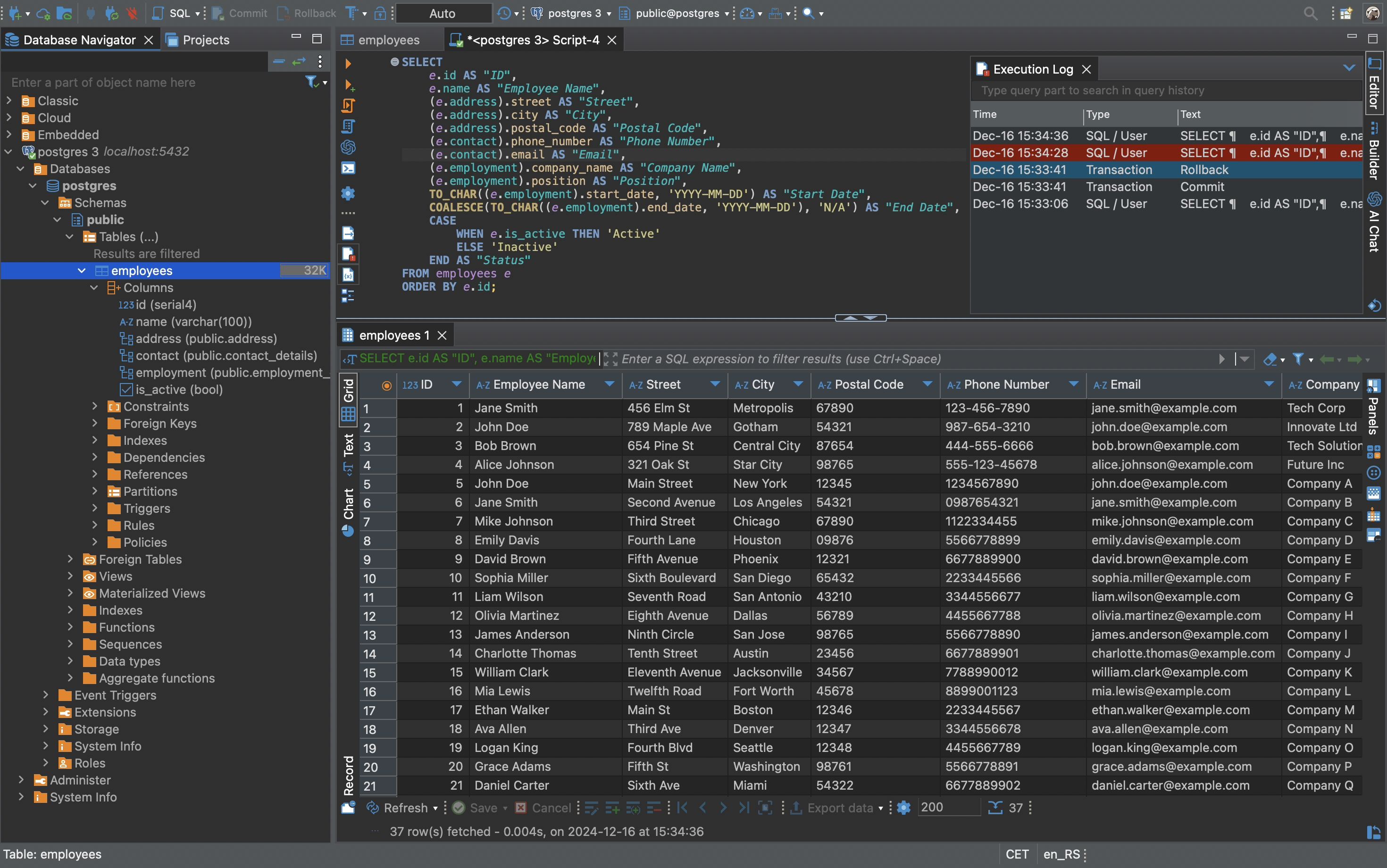
Images from the project's own README.
What it does
DBeaver is a desktop tool for looking inside databases. You can browse tables, edit rows like a spreadsheet, run queries and export data.
Who it's for
Developers, analysts and anyone who works with databases.
Key features
- Supports most popular databases
- Spreadsheet-style data editing
- Visual diagrams of tables
Often used instead of: TablePlus, DataGrip
Compatibility
NOVI never presents a guess as verified.- WindowsEvidence-supported
Available as an official WinGet package (“DBeaver.DBeaver.Community”).
- macOS (Apple Silicon)Evidence-supported
Available as an official Homebrew Cask package (“dbeaver-community”).
- macOS (Intel)Evidence-supported
Available as an official Homebrew Cask package (“dbeaver-community”).
- LinuxEvidence-supported
Available as an official Flatpak (Flathub) package (“io.dbeaver.DBeaverCommunity”).
What do these labels mean?
- Confirmed
- NOVI users have completed verified installations on this system.
- Evidence-supported
- The project publishes an official build or package for this system.
- Inferred
- Likely to work based on how the project is built, but not confirmed.
- Unknown
- We have not found enough evidence either way.
- Unsupported
- The project does not support this system.
How to get it
Direct downloadDownload the official installer from the project or its publisher, then open it. Difficulty: Easy.
WindowsDirect downloadGuided
Download from the official release
File attached to the project's official GitHub release. NOVI links to it; the file comes straight from github.com, not from NOVI. Where this link comes from
- 1
After it downloads. Open the downloaded file (usually in your Downloads folder) and follow the installer. If Windows SmartScreen warns you, check that the file came from the address shown above before choosing to run it.
Install with WinGet
Installs Windows applications using WinGet, Microsoft's package manager included with Windows 10 and 11. You run these steps yourself; NOVI does not install anything from this website.
- 1
Open Windows Terminal or PowerShell. Right-click the Start button and choose Terminal. WinGet is included with Windows 10 (recent updates) and Windows 11; type “winget --version” to check.
- 2
Copy this command and press Enter. It installs the package from Microsoft's official WinGet catalogue. Windows may ask for administrator approval for some installers; only approve it if you trust this software.
winget install --id DBeaver.DBeaver.Community --exact --source winget --accept-package-agreements --accept-source-agreements - 3
Check it worked. The app appears in your Start menu. This command lists it as installed:
winget list --id DBeaver.DBeaver.Community --exact --source winget - 4
See the official package listing. Shows the publisher's installer that WinGet downloads. Open
macOS (Apple Silicon)Direct downloadGuided
Download from the official release
File attached to the project's official GitHub release. NOVI links to it; the file comes straight from github.com, not from NOVI. Where this link comes from
- 1
After it downloads. Open the downloaded file from your Downloads folder. For a .dmg, drag the app into Applications; for a .zip, double-click to unpack it, then move the app into Applications. The first time you open it, macOS may ask you to confirm.
Install with Homebrew Cask
Installs macOS applications using Homebrew, a widely used package manager for macOS. You run these steps yourself; NOVI does not install anything from this website.
- 1
Make sure Homebrew is installed. Homebrew is a free, widely used tool for installing software on a Mac. Open the Terminal app and type “brew --version”. If you see a version number you already have it; otherwise follow the one-line instructions on brew.sh. Open
- 2
Copy this command into Terminal and press Return. It installs the package from Homebrew's official catalogue only. Homebrew checks the download against a known checksum.
brew install --cask homebrew/cask/dbeaver-community - 3
Check it worked. The app appears in your Applications folder. You can also run this command to see the installed version:
brew list --cask --versions dbeaver-community - 4
See the official package listing. Shows exactly what Homebrew installs and where it comes from. Open
macOS (Intel)Direct downloadGuided
Download from the official release
File attached to the project's official GitHub release. NOVI links to it; the file comes straight from github.com, not from NOVI. Where this link comes from
- 1
After it downloads. Open the downloaded file from your Downloads folder. For a .dmg, drag the app into Applications; for a .zip, double-click to unpack it, then move the app into Applications. The first time you open it, macOS may ask you to confirm.
Install with Homebrew Cask
Installs macOS applications using Homebrew, a widely used package manager for macOS. You run these steps yourself; NOVI does not install anything from this website.
- 1
Make sure Homebrew is installed. Homebrew is a free, widely used tool for installing software on a Mac. Open the Terminal app and type “brew --version”. If you see a version number you already have it; otherwise follow the one-line instructions on brew.sh. Open
- 2
Copy this command into Terminal and press Return. It installs the package from Homebrew's official catalogue only. Homebrew checks the download against a known checksum.
brew install --cask homebrew/cask/dbeaver-community - 3
Check it worked. The app appears in your Applications folder. You can also run this command to see the installed version:
brew list --cask --versions dbeaver-community - 4
See the official package listing. Shows exactly what Homebrew installs and where it comes from. Open
LinuxDirect downloadGuided
Download from the official release
File attached to the project's official GitHub release. NOVI links to it; the file comes straight from github.com, not from NOVI. Where this link comes from
- 1
After it downloads. Open the downloaded file with your software centre, or follow the project's instructions for this file type (AppImage files need to be marked as executable first).
Install with Flatpak (Flathub)
Installs sandboxed Linux applications from Flathub for your user account only. You run these steps yourself; NOVI does not install anything from this website.
- 1
Make sure Flatpak and Flathub are set up. Many Linux systems include Flatpak. Flathub's setup page has short instructions for every major distribution. Open
- 2
Copy this command into a terminal and press Enter. It installs the app from Flathub for your user account only — no administrator password needed — and runs it in Flatpak's sandbox.
flatpak install --user flathub io.dbeaver.DBeaverCommunity - 3
Check it worked. The app appears in your applications menu. This command shows its details:
flatpak info --user io.dbeaver.DBeaverCommunity - 4
See the official Flathub page. Shows the app's permissions and who publishes it. Open
NOVI never installs software from your browser. Downloads come directly from the project or its publisher. Only install software you trust.
Get it working
A free, personal setup plan for your computer: the official download, exact steps, and a checklist. Saved in your dashboard, with help if you get stuck. NOVI never installs or runs anything on your computer.
Requirements
- Homebrew Cask for automatic install — Installs macOS applications using Homebrew, a widely used package manager for macOS. The NOVI companion checks whether it is present.
- WinGet for automatic install — Installs Windows applications using WinGet, Microsoft's package manager included with Windows 10 and 11. The NOVI companion checks whether it is present.
- Flatpak (Flathub) for automatic install — Installs sandboxed Linux applications from Flathub for your user account only. The NOVI companion checks whether it is present.
Cost: The Community edition is free; paid editions add extra database support.
Trust and security
- license
Published under the Apache License 2.0 (Apache-2.0).
Licence detected by GitHub from the repository's licence file. Read the full licence before modifying or redistributing.
Source - distribution
Distributed through Homebrew Cask, an established package source.
The package manager checks downloads against a published checksum before installing.
Source - distribution
Distributed through WinGet, an established package source.
The package manager checks downloads against a published checksum before installing.
Source - distribution
Distributed through Flatpak (Flathub), an established package source.
The package manager checks downloads against a published checksum before installing.
Source
NOVI checks licences, maintenance activity and distribution sources. NOVI has not audited this project's code and does not certify it as secure. Only install software you trust.
Reviews
No reviews yet
Be the first to share your experience with DBeaver. NOVI never shows invented reviews.
Sign in to write a review.
Recent releases
From GitHub26.2.5Nov 15, 2026
- AI Assistant: - Added Ollama support for running local AI models - Selecting an AI profile in chat now saves it as the user's default for new conversations - Canceled responses now retain reported token usage and show N/A when usage is unavailable instead of zero counts - Fixed AI Chat remaining blank or waiting indefinitely when chat history initialization fails - Fixed conversation timestamps shifting after restarting DBeaver - Clearing Temperature now uses the AI provider's server default instead of sending a numeric value - Fixed AI Chat remaining on "Waiting for response..." after a tool or follow-up request fails - Generated AI metadata now filters out objects and relationships outside the configured context scope - Added per-connection AI metadata consent and scope settings - Added a connection picker to AI Chat, including disconnected connections without chat history - SQL Editor: - Added syntax analysis, autocomplete, and s
Full release notes26.2.4Nov 1, 2026
- AI Assistant: - Added support for configuring AI providers, including OpenAI and GitHub Copilot, through environment variables - Fixed AI scope selection for nested tables, views, and other object folders - Improved AI Chat image previews with aspect-ratio thumbnails, popup viewing, zoom, and scrolling - SQL Editor: - Added cross-statement SQL variable tracking for autocomplete, highlighting, hover information, and the SQL outline - Added Ask, Always, and Never options for reloading metadata after DDL execution - Added "Select All" to text editor context menus and the Edit menu (thanks to @kbrianps) - Fixed SQL script tasks failing when writing stored procedure OUT parameter values to the log (thanks to @fizzbeom) - The "New" and "Import" buttons in SQL template preferences are now available without selecting an existing template (thanks to @augustocbx) - Metadata Editor: - Connection type color changes now refresh throughout open table Properties editors
Full release notes26.2.3Oct 18, 2026
- AI Assistant: - Added drag-and-drop support for Navigator objects and files in AI Chat - Added support for attaching images to AI Chat from files, drag-and-drop, and the clipboard - Fixed an issue where closing multiple SQL Editor tabs cleared the selected AI Chat connection and conversation - Fixed SQL block Execute, Copy, and Open in editor actions on Linux (thanks to @Josephur) - Fixed small font sizes and unnecessary truncation for profile and model names in AI Chat - ChatGPT subscription errors are now displayed as readable messages instead of raw JSON - SQL Editor: - Added the ability to execute SQL script files without opening them in the SQL Editor - Added a notification for refreshing affected metadata after successful DDL execution - Fixed an issue where new SQL templates used Vertica instead of abstract SQL as the default context - Fixed SQL Editor corruption when deleting an auto-inserted closing bracket in Eclipse installations with TM4E
Full release notes26.2.2Oct 4, 2026
- AI Assistant: - Redesigned the AI engine selector with a native drop-down, engine icons, and improved keyboard accessibility - Fixed model discovery for self-hosted OpenAI-compatible endpoints with non-OpenAI model names - Improved error messages for HTTP redirects from custom OpenAI-compatible endpoints by showing the redirect target and configuration guidance - Fixed model listing and chat requests for self-hosted OpenAI-compatible endpoints when the base URL has no trailing slash (thanks to @Ashfaqbs) - Improved guidance and validation when the custom AI scope contains no database objects - Fixed an issue on macOS where opening the AI profile or model picker could immediately select an item - SQL Editor: - Added a setting to choose whether Enter, Tab, both, or neither accepts autocomplete suggestions - Added a preference to disable the large-script result-fetch warning (thanks to @akmalsyrf) - Fixed SQL Editor toolbar background colors for color-coded connections in t
Full release notes26.2.1Sep 21, 2026
- Product configuration: - Fixed an issue where toolbars for disabled tools remained visible - AI Assistant: - Added profile and model selectors to AI Chat - Fixed a white flash when opening AI Chat in the dark theme - Improved AI Chat prompt caching, reducing repeated input-token processing in multi-turn conversations - SQL Editor: - Detached query result tabs now preserve the original result tab name and tooltip - Disconnecting a data source no longer prompts to save or automatically saves an open SQL script (thanks to @gsastraw) - User-defined Escape key bindings now work when no inline suggestion is visible (thanks to @danielpallettfr) - Fixed default formatting of column lists in CREATE TABLE constraints - Fixed intermittent errors in the Error Log when editing INSERT statements - Fixed an error that could occur when editing or moving the caret quickly while code completion was open - Metadata Editor:
Full release notes
Where this information comes from
- Description, audience and features: Written by NOVI editors from the project's README and official website. link
- Statistics, licence and releases: GitHub API link
- Available through Homebrew Cask: Official package registry link
- Available through WinGet: Official package registry link
- Available through Flatpak (Flathub): Official package registry link
- Direct download links: Files attached to the project's official GitHub release 26.2.5 link
GitHub data last refreshed 3 days ago. DBeaver is the property of its authors. NOVI is not affiliated with this project.